# Looping (Iterators)
If you ever need to work with a [Lists](https://docs.relay.app/data/lists-arrays) of items in a Relay.app workflow (e.g. a list of email attachments or a list of rows that were found in the spreadsheet), an Iterator is a tool that lets you take an action for each item.
To use an Iterator, you need to do two things:
1. Select the list that you want to iterator over (e.g. the output of a Find step or AI step)
2. Configure the actions that should happen for each item
#### Creating the Iterator
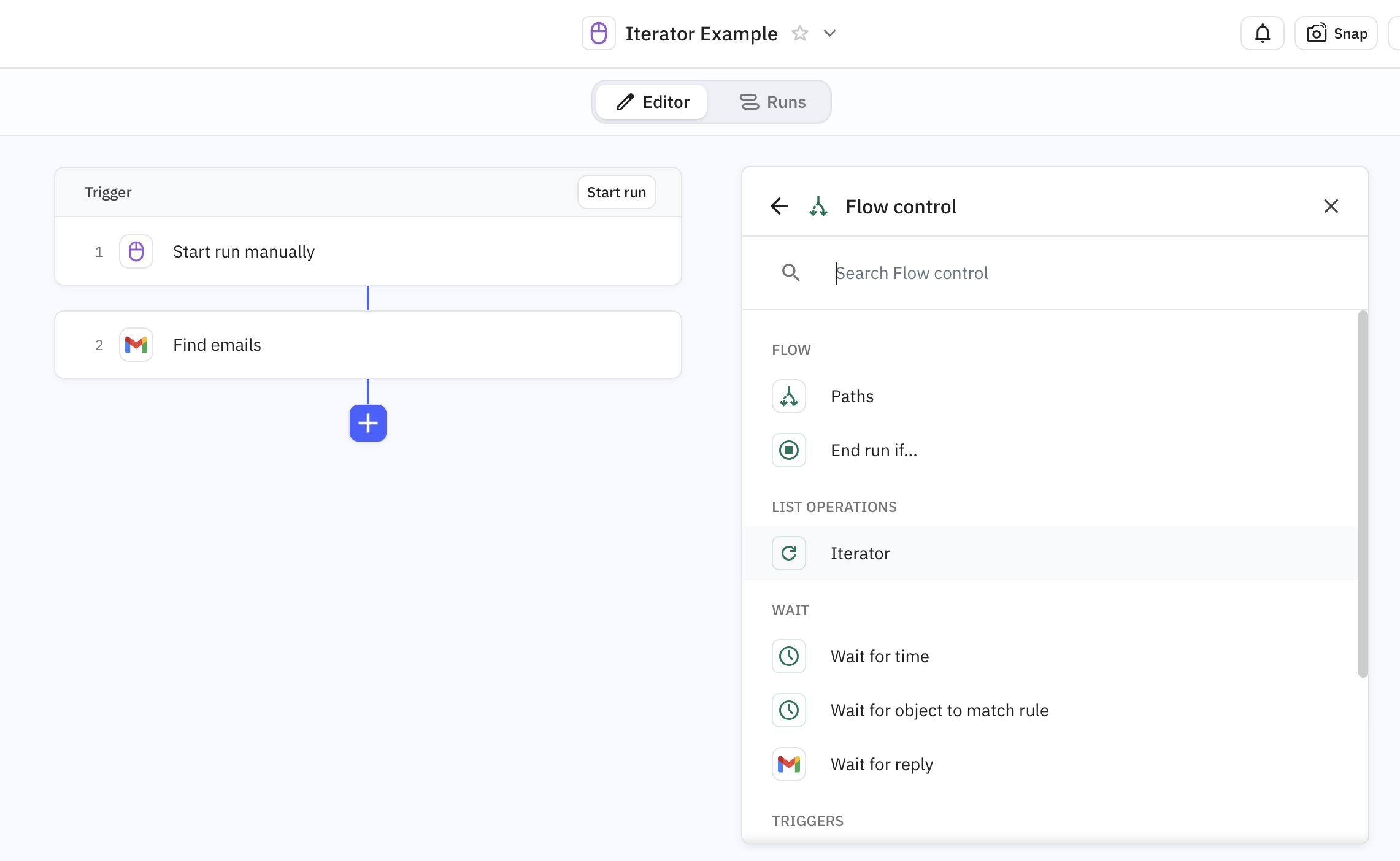
To create an Iterator, select it from the 'Flow Control' menu:
Selecting Iterator in the Flow Control menu.
#### Selecting the Items
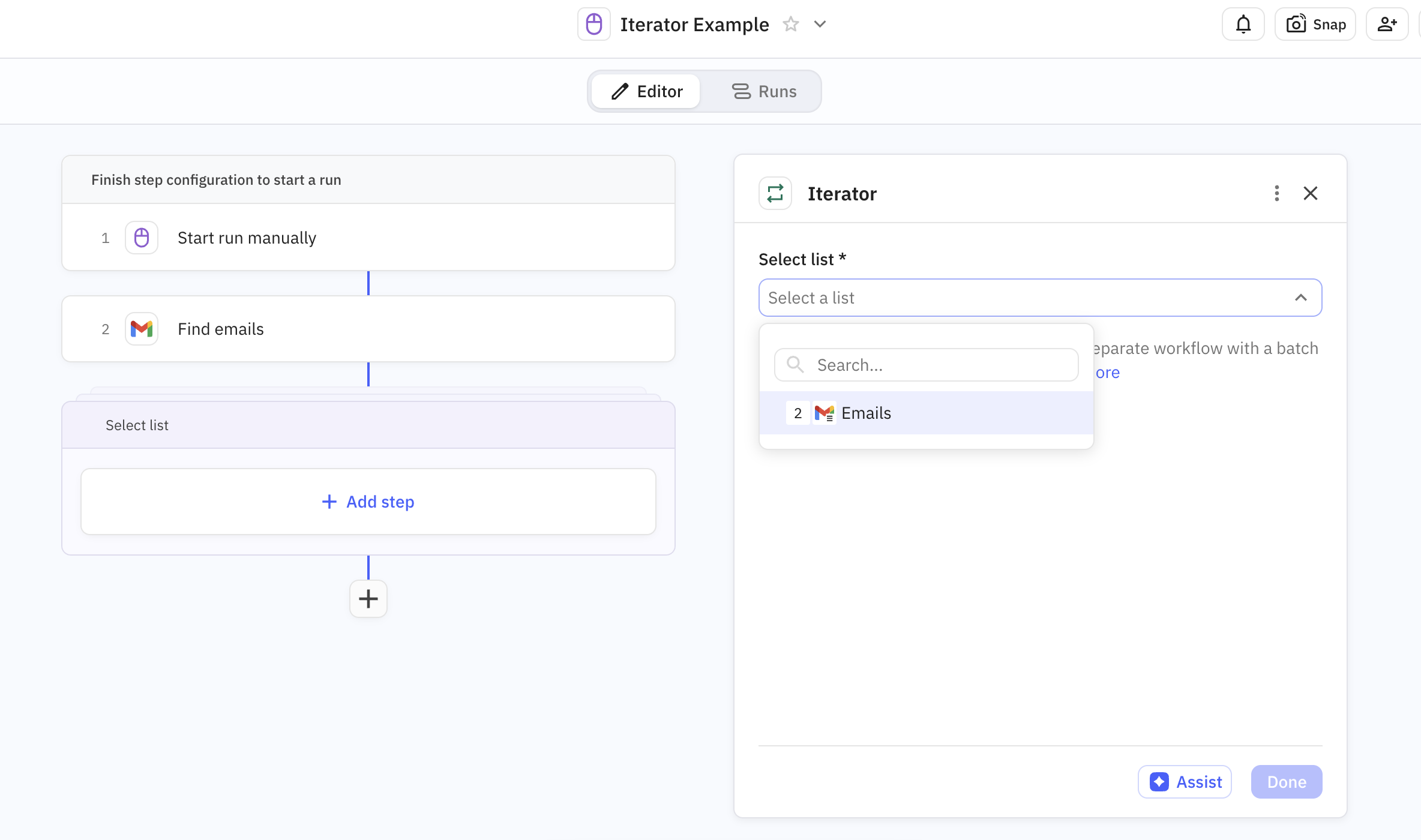
Once you've added the iterator, the first thing you need to do is to select the list of items, which will typically be the output of one of your previous steps.
Selecting the list from my previous step
#### \[Optional] Choosing a subset of the List
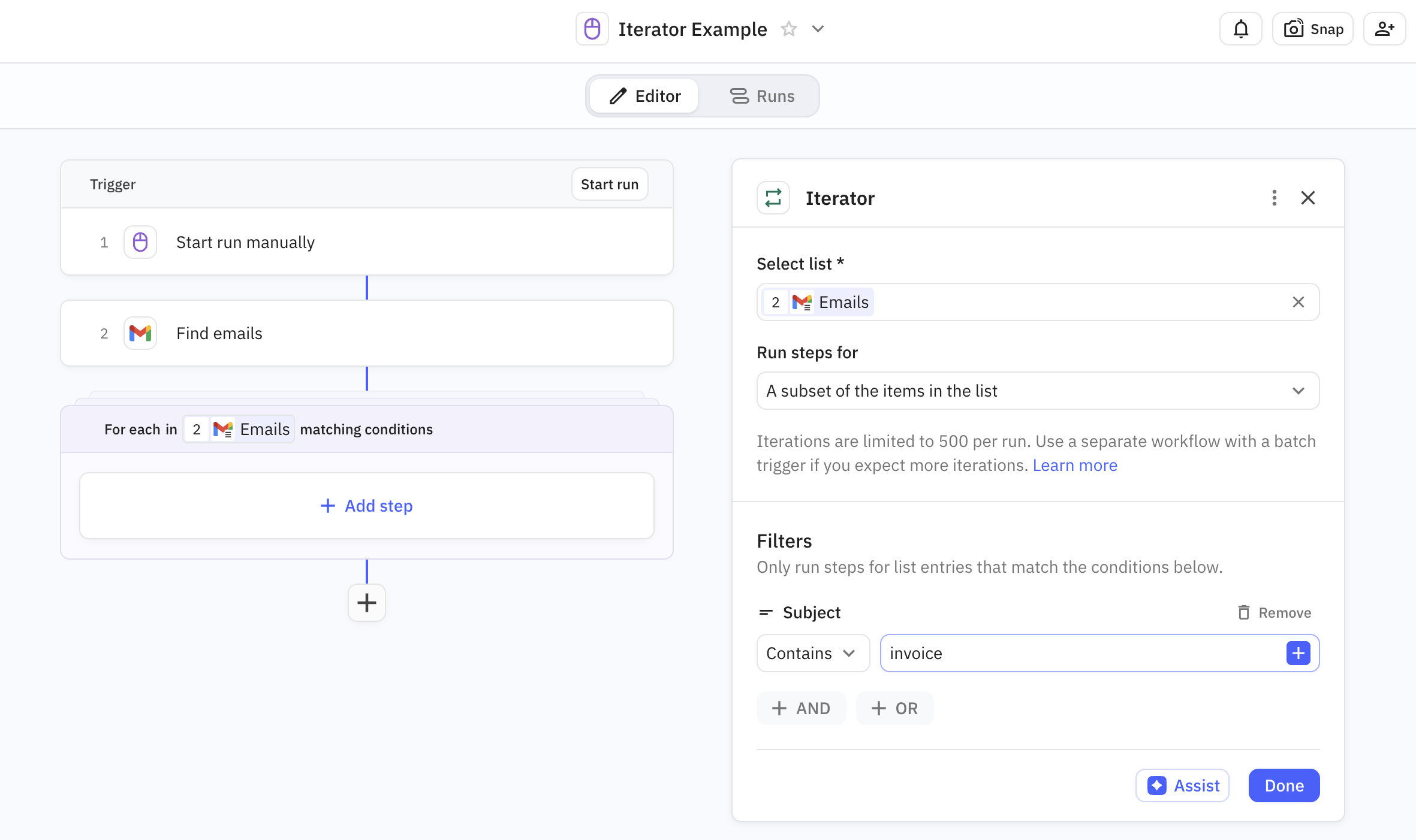
In most cases, you 'll want to apply the same actions to every element in the list, but in some cases, you'll want to apply the action to a specific subset of items in the list. To do that, change 'Run steps for' to 'A subset of items in the list' and configure your filter criteria.
Running the Iterator for a subset of items in the list
#### Configuring the Actions
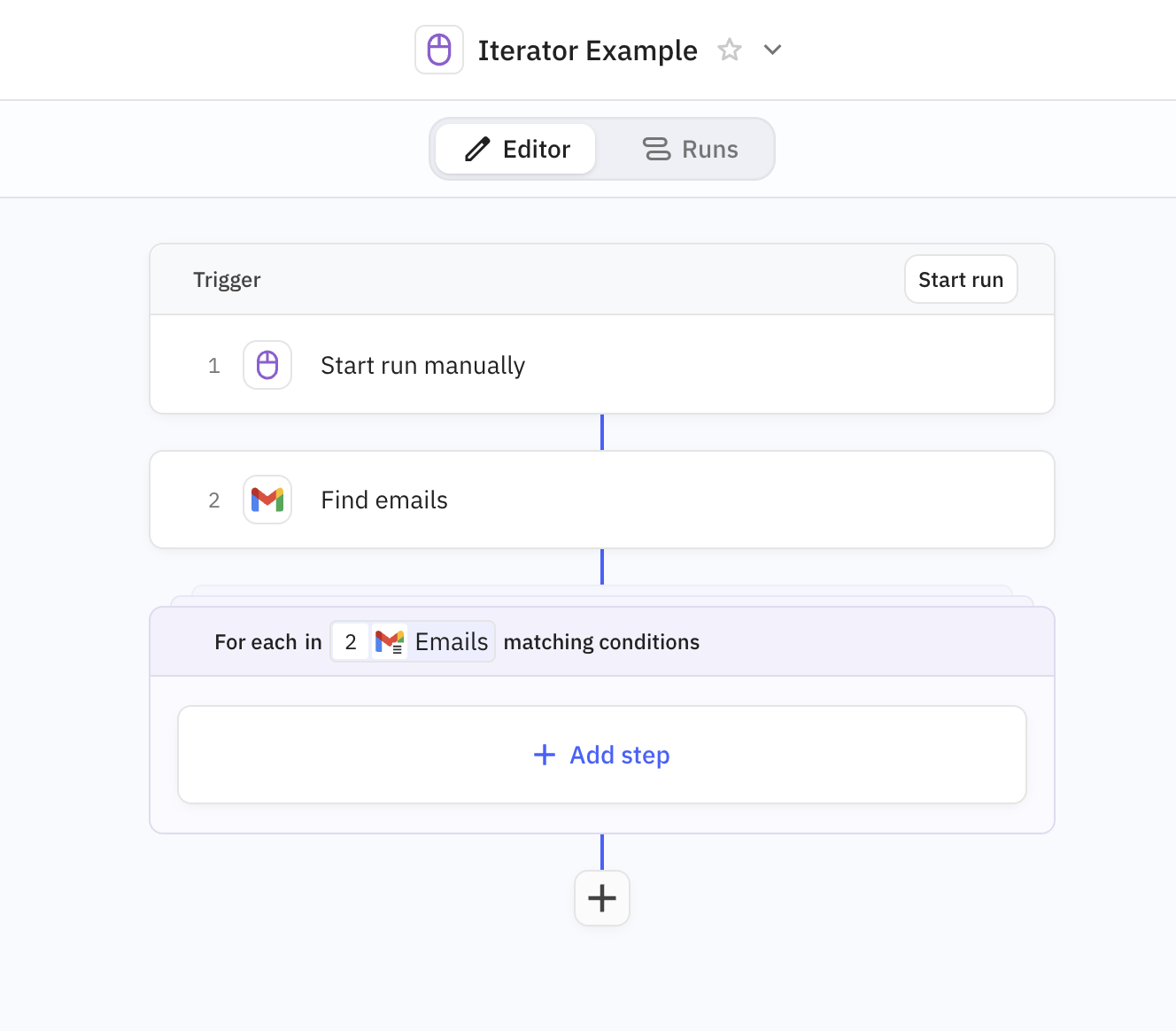
Finally, you can set up the actions inside the iterator by pressing the add step button inside the iterator block.
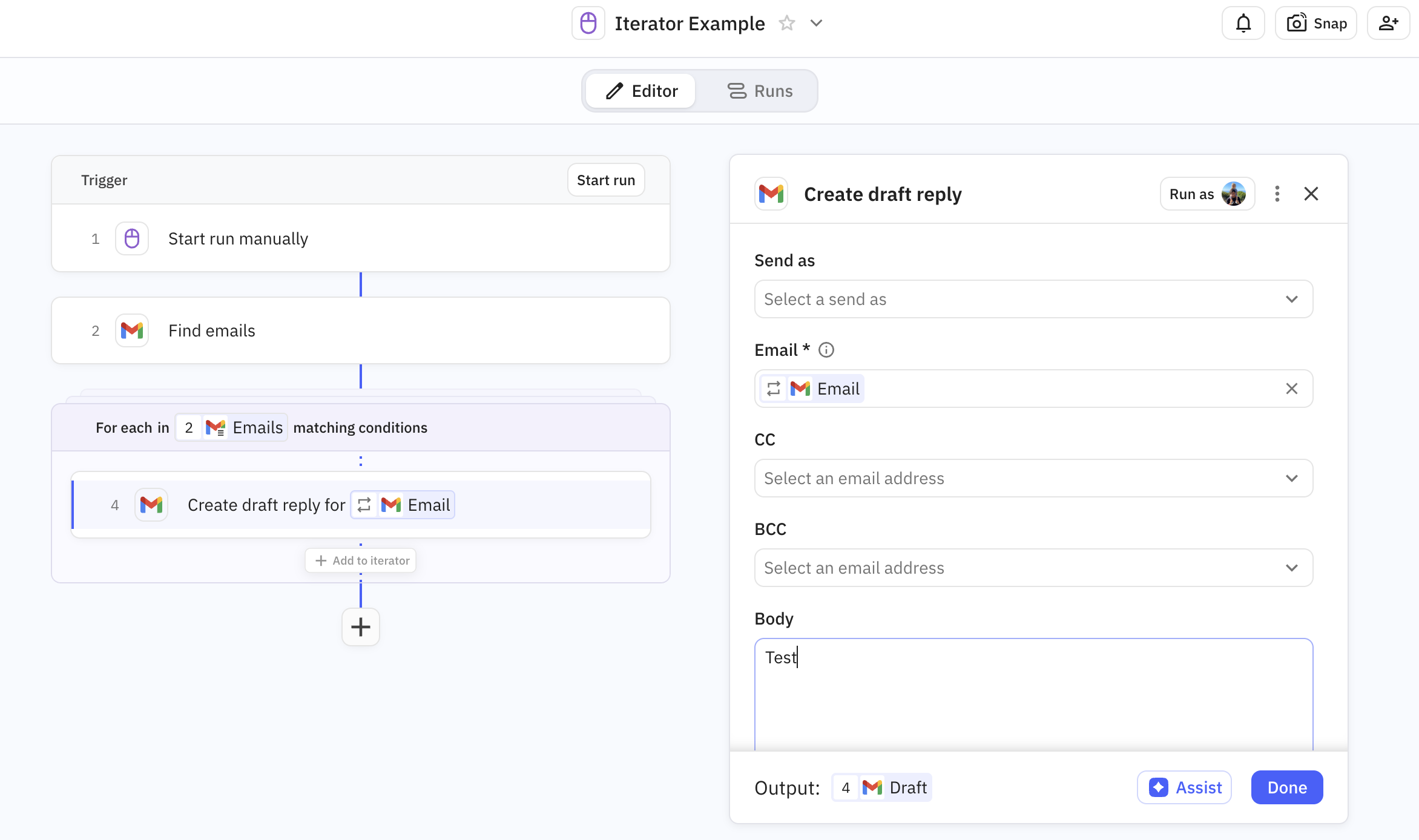
Once you add your steps, you'll need to access the data from the current iteration in your automations. To do that, make sure you're selecting a value with the iterator icon.
Using the email from the current iteration to draft the reply.
Once you've added your automations into the iterator block, you're done!
#### Video Demo
Here's a very short video demo of how to set one up.
{% embed url="" %}
---
# Agent Instructions: Querying This Documentation
If you need additional information that is not directly available in this page, you can query the documentation dynamically by asking a question.
Perform an HTTP GET request on the current page URL with the `ask` query parameter:
```
GET https://docs.relay.app/flow-control/iterators.md?ask=
```
The question should be specific, self-contained, and written in natural language.
The response will contain a direct answer to the question and relevant excerpts and sources from the documentation.
Use this mechanism when the answer is not explicitly present in the current page, you need clarification or additional context, or you want to retrieve related documentation sections.